
Help center
IPTV Edge support: most fixes take minutes
Start with the fix for what you are seeing. If it does not solve the problem, message us with your device and a photo of the screen, and we will take it from there.
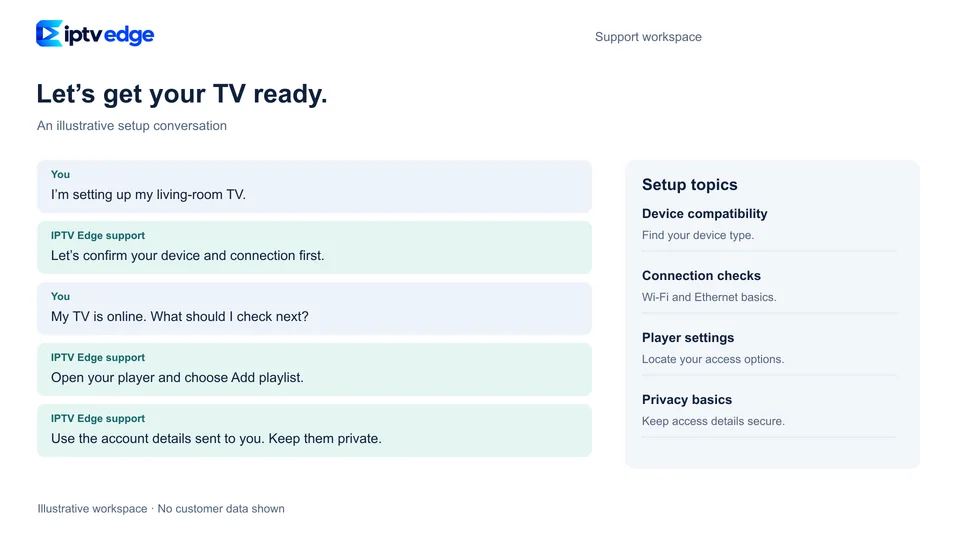
Fixes by symptom
What are you seeing?
Open the problem that matches yours and work through the steps in order. Most issues are solved by step two.
The picture buffers or freezes
- Restart the router and the TV or stick (unplug for 30 seconds).
- Switch to Ethernet, or move the TV to 5 GHz Wi-Fi close to the router.
- Pause other heavy downloads, game updates or cloud backups at home.
- In the player settings, try another stream format or a larger buffer size if the app offers one.
- Still freezing on every channel? Message us with your speed test result.
“Login failed” or “invalid credentials”
- Copy and paste the details from our message instead of typing them. One wrong letter is enough.
- Check for a space at the start or end of the username or password.
- Make sure the server address includes “http://” and the port, exactly as sent.
- Check that your plan has not reached its end date.
The TV guide is empty or shows the wrong times
- Use the app’s “update EPG” or “refresh guide” option and wait a few minutes.
- Set your time zone, or adjust the “EPG time shift” setting in the app.
- Some channels never have guide data. They still play normally.
The app crashes or will not open
- Force-stop the app and open it again.
- Clear the app cache in the device settings (not the data, or you will need to log in again).
- Update the app from the store, and check for a system update on the device.
- Free up storage: devices with less than 500 MB free often become unstable.
“Maximum connections reached”
- Close the app on any device you are not using. Some apps keep streaming in the background.
- Wait two minutes for the old connection to time out, then try again.
- If more people need to watch at once, ask us about the number of screens on your plan.
No sound, or the wrong language
- Open the audio track menu during playback and pick another track.
- If the sound goes through a soundbar, set the device audio output to PCM or Stereo instead of “auto”.
- For movies and series, audio and subtitle options vary by title.
One channel does not work
- Switch to another channel and back, or restart the app.
- If other channels play and this one stays down, send us its exact name and category. Sources sometimes change and we fix them.
The picture looks soft or blurry
- Check whether the channel itself is SD or HD; quality depends on the source.
- Turn off “motion smoothing” or similar picture modes on the TV.
- Make sure the device output resolution matches your TV (for example 1080p or 4K).
Before you message us
Five quick checks that solve most problems
Is the internet working on another device?
If your phone cannot load a web page on the same Wi-Fi, the issue is the connection.
Did you restart everything once?
Router first, then the TV or stick, then the app.
Is it every channel or just one?
One channel points to a source problem; every channel points to the connection or login.
Is your plan still active?
Check the end date in your written confirmation.
Can you take a photo of the screen?
An exact error message helps us more than any description.
If it still does not work
What we do when a fix is not enough
We troubleshoot with you
In the chat, step by step, using photos of your screen when it helps.
We try an alternative
A different player app or connection method often solves a device-specific problem.
The refund policy applies
If we cannot make it work on your device, you can ask for a refund within 7 days of activation. Read the conditions.
Setting up a new device?
The installation guide walks through Smart TVs, Fire TV, Android, Apple TV, computers and MAG boxes.