
IPTV on Fire TV
IPTV on Fire TV Stick: check your model first
Fire TV Sticks are the most popular way to add IPTV Edge to any TV with an HDMI port. Setup is quick, but it depends on which Fire TV you own, so start with the model check below.
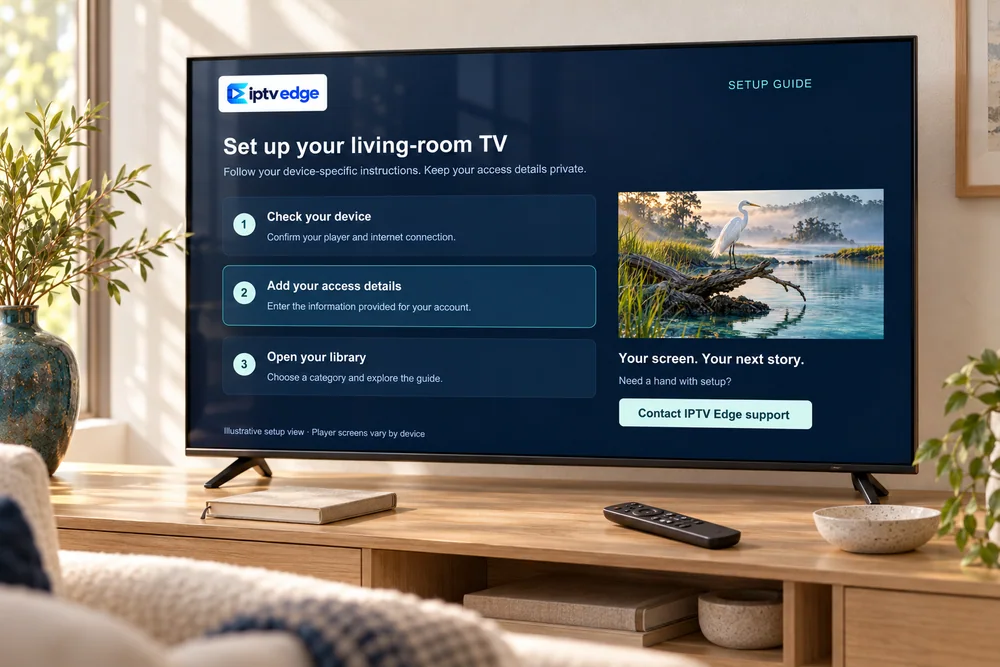
Before you start
Four checks before you install
Model and system
Settings → My Fire TV → About. Most Fire TV devices run Fire OS, based on Android. Some newer models run a different system that only installs apps from the Amazon Appstore, which changes the setup.
Free storage
Settings → My Fire TV → About → Storage. Basic models fill up quickly; aim for at least 500 MB free.
Wi-Fi behind the TV
A stick plugged directly behind a TV gets weaker Wi-Fi. Use the HDMI extender from the box, or Amazon’s Ethernet adapter.
Install safely
Only install the player we confirm, from the Appstore when it is listed there.
Tell us your exact model name (for example “Fire TV Stick 4K” or “Fire TV Stick Lite”). We reply with the right steps for that model before you pay.
Setup
Set up IPTV Edge on a Fire TV Stick
Search the Amazon Appstore
Use Find → Search for the player named in your welcome message. If it is listed, install it and skip to step 4.
If it is not listed, install Downloader
Downloader is a free app in the Amazon Appstore. We send the code to type into it for the player we recommend.
Allow the install for Downloader only
Settings → My Fire TV → Developer options → Install unknown apps → Downloader → On. If Developer options is hidden, open About and select your device name seven times. Switch the setting off again after installing.
Add your details
Choose Xtream Codes login and enter the details from our message. The Fire TV app for your phone gives you a keyboard.
Pin it to the home screen
Highlight the app, press the menu button and choose Move to front.
Prefer help?
We can walk you through it
Not sure which Fire TV you have, or Developer options will not appear? Send a photo of the About screen and we guide you from there.
Ask on WhatsApp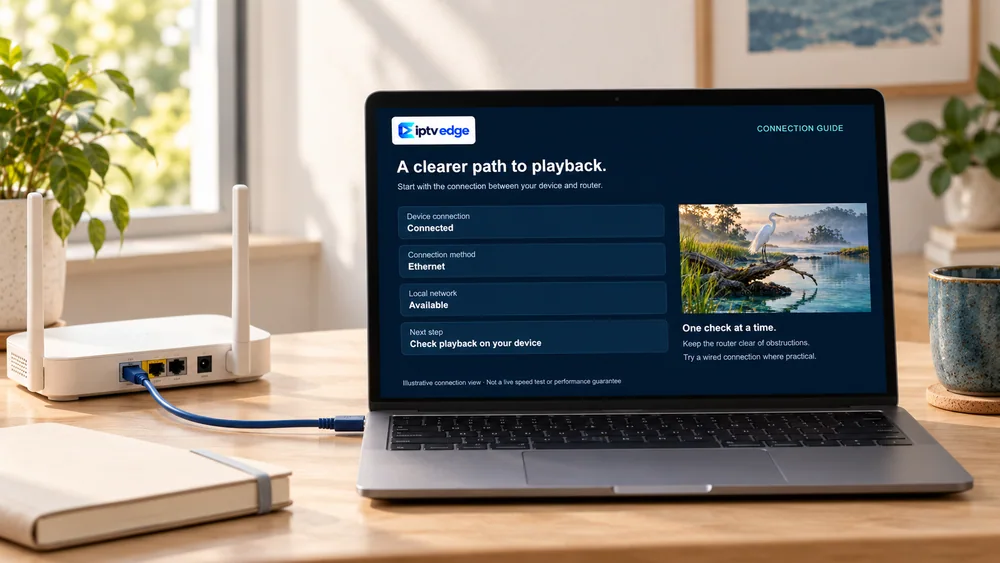
Smooth playback
Stop buffering on Fire TV
- Plug the stick into the HDMI extender so it sits away from the back of the TV.
- For live sports, Amazon’s Ethernet adapter makes the biggest difference.
- Restart from Settings → My Fire TV → Restart once a week; Fire TV devices rarely switch off fully.
- Uninstall apps you no longer use to keep storage free.
- In the player, clear the cache if channel lists load slowly.
Questions
Fire TV Stick questions
Is it safe to install an app with Downloader?
Installing outside the Appstore carries more risk, which is why we only send codes for players we have checked, ask you to allow installs for Downloader only, and suggest switching the setting off afterwards.
“Install unknown apps” is missing on my Fire TV.
Developer options may be hidden: go to Settings → My Fire TV → About and select your device name seven times. If the option still does not exist, your model probably cannot install apps from outside the Appstore. Tell us and we suggest the alternative.
Which Fire TV is best for IPTV?
A 4K model with plenty of storage, used with an Ethernet adapter or strong 5 GHz Wi-Fi. Basic models work, but menus are slower with large channel lists.
Why does my Fire Stick buffer when my phone does not?
Usually because of Wi-Fi reception behind the TV, low storage, or the stick needing a restart. Work through the tips above, then message us with a speed test from the Fire TV itself.
Ready to watch on Fire TV Stick?
Choose a plan, or ask us to confirm your exact model first. Every order is confirmed in writing before payment.