
IPTV on Smart TV
IPTV on your Smart TV: Samsung & LG setup that works
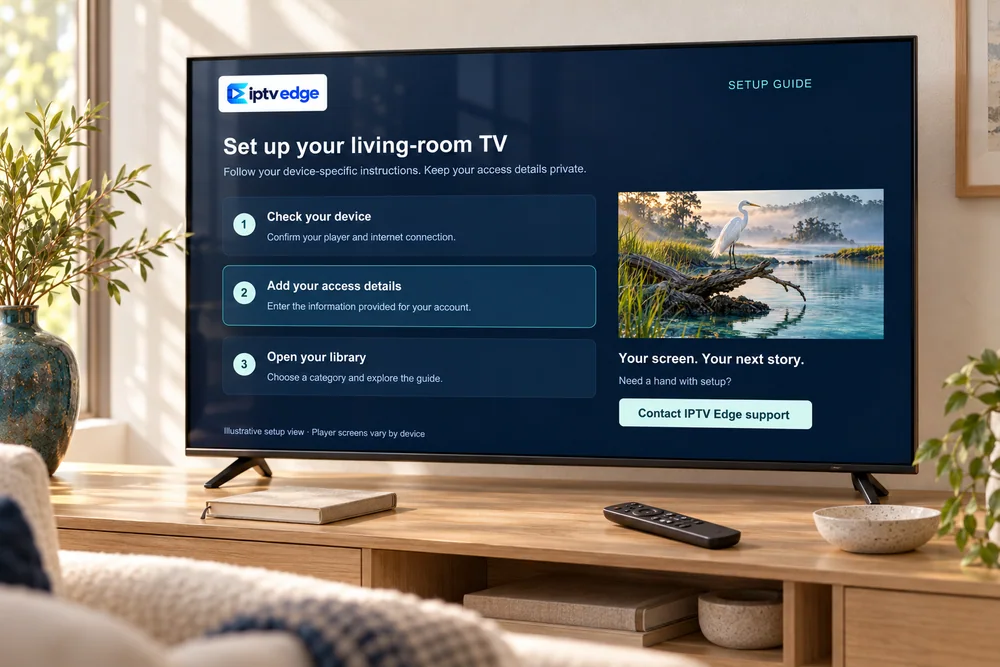
No extra box needed on most recent Samsung and LG TVs. You install a player app from the TV’s own store, add the details we send, and IPTV Edge appears on the big screen with a full channel guide.
Before you start
Four things to check on your TV
Model year
Most current player apps run on TVs from around 2018 onward. Samsung: Settings → Support → About This TV. LG: Settings → General → About This TV.
App store access
Samsung uses the Apps section, LG the LG Content Store. The apps you see depend on the region your TV is set to.
Player app fee
Some TV player apps ask for a one-time activation fee set by their developer. It is separate from IPTV Edge, and we tell you before you install.
Connection
TV Wi-Fi modules are often weaker than a phone’s. If there is an Ethernet port on the back, use it.
Older or entry-level TVs with little memory can be slow with a large channel list. A streaming stick plugged into an HDMI port is often smoother, and inexpensive.
Setup
Set up IPTV Edge on a Samsung or LG TV
Open the TV’s app store
Press Home on the remote, then Apps (Samsung) or the LG Content Store (LG).
Install the player we name for your model
Search for the app in your welcome message. Check the developer name before installing.
Note the device key, if shown
Many TV players display a MAC address or device key on first launch. Send it to us if your instructions ask for it.
Add your details
Use the app’s website upload if it has one: typing a long address on a phone is far easier than with a TV remote.
Load the list and set your favorites
Let the first load finish, set the guide time zone, then favorite the channels you watch most.
Prefer help?
We can walk you through it
Send us a photo of your TV’s “About” screen and we will name the app that suits it, including whether it charges a fee.
Ask on WhatsApp
Smooth playback
Get the best picture from your TV
Smart TVs process the picture heavily by default. A few settings make live TV and sports look far more natural.
- Turn off motion smoothing (Auto Motion Plus on Samsung, TruMotion on LG) to avoid the “soap opera” look and stutter on fast scenes.
- Use the Standard or Movie picture mode rather than Vivid.
- Restart the TV fully once a week: hold the power button until the logo appears. Most TVs only sleep when you switch them off.
- Use Ethernet if you can; otherwise move the router into the open, not inside a TV cabinet.
- Keep the TV’s system software up to date from its settings menu.
Questions
Smart TV questions
Which Smart TVs work with IPTV Edge?
Most Samsung (Tizen) and LG (webOS) TVs from about 2018 onward, plus TVs running Android TV or Google TV such as many Sony, TCL, Hisense and Philips models. For those, see our Android guide.
Why does the player app ask me to pay?
Some Smart TV player apps are paid software. The developer sets that fee, not IPTV Edge. We always say up front whether the app we recommend charges anything.
Can I just use the TV’s web browser?
We do not recommend it. TV browsers are slow, do not show a proper channel guide and often cannot play live streams reliably.
My TV is older than 2017. What are my options?
Plug a streaming stick into a spare HDMI port. A Fire TV Stick or an Android TV device turns any TV with HDMI into a capable IPTV screen.
Ready to watch on my Smart TV?
Choose a plan, or ask us to confirm your exact model first. Every order is confirmed in writing before payment.